
Create a project
Pick a preset or set up a new Ruwa canvas yourself.
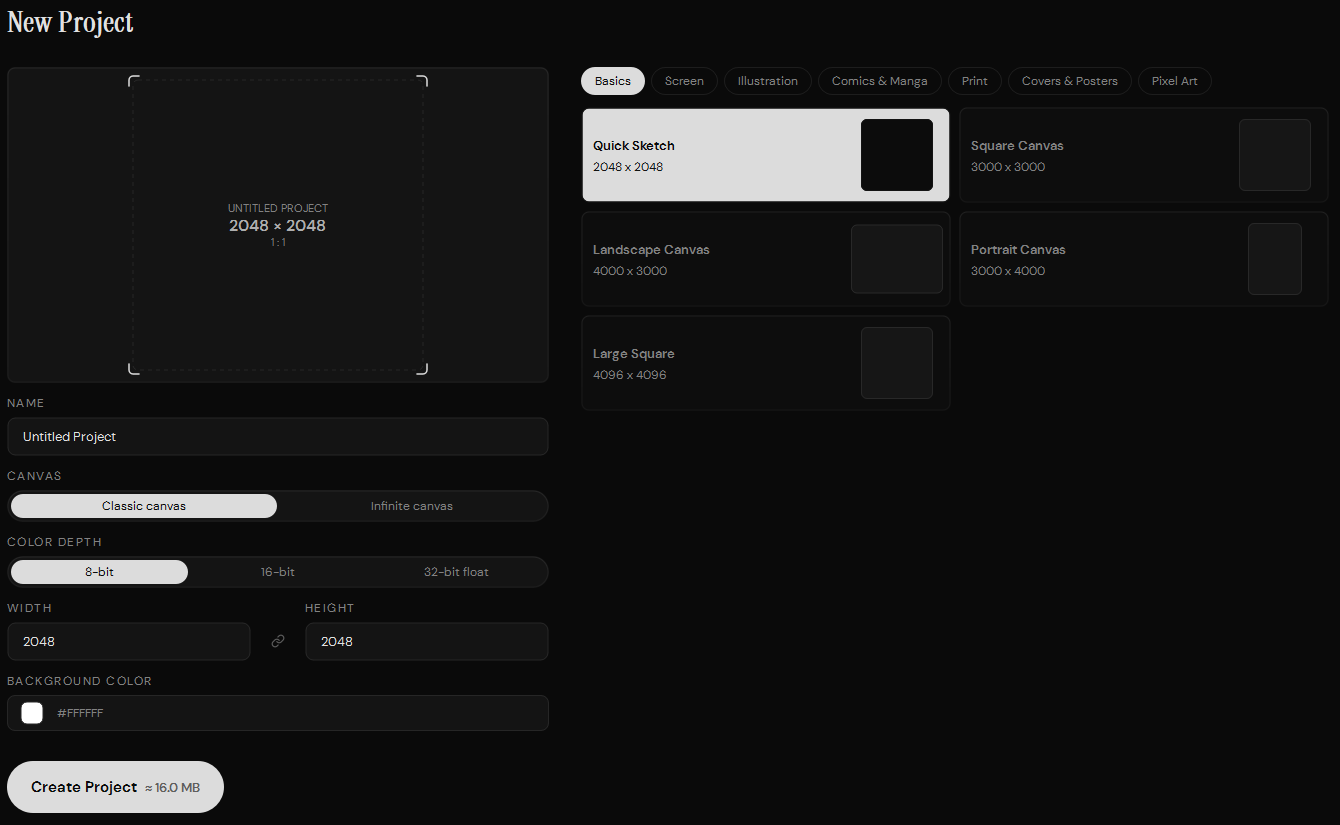
Two ways in: grab a preset on the right, or set everything by hand on the left. Presets only fill in the starting values, so you can take one and still change anything before you hit Create.
Project presets
The tabs above the preset list group starting sizes by what they're for:
| Group | What's in it |
|---|---|
| Basics | General-purpose square, landscape, and portrait canvases. |
| Screen | Sizes for artwork that lives on a screen. |
| Illustration | Common starting points for illustrations. |
| Comics & Manga | Presets for comic and manga pages. |
| Sizes prepared for print work. | |
| Covers & Posters | Proportions used for covers and posters. |
| Pixel Art | Smaller canvases for pixel work. |
Basics, shown above, contains:
- Quick Sketch — 2048 × 2048. A solid default if you don't want to think about it.
- Square Canvas — 3000 × 3000.
- Landscape Canvas — 4000 × 3000.
- Portrait Canvas — 3000 × 4000.
- Large Square — 4096 × 4096.
Presets aren't locks
Pick one and change whatever you want after: name, canvas type, color depth, dimensions, background.
Project preview and name
The preview shows the proportions you're about to get. In the middle it prints the name, the dimensions, and the aspect ratio, which is a decent last chance to catch a wrong number before the project exists.
The Name field sets the name Ruwa shows. New projects are called
Untitled Project until you say otherwise.
Canvas type
Classic canvas
Fixed width and height. Use it when you know the dimensions you need.
Infinite canvas
No outer boundaries. The work grows as you draw past the edges.
Color depth
Color depth is how much precision each pixel gets. More depth holds more tonal information and eats more memory.
| Option | When to use it |
|---|---|
| 8-bit | The practical default for sketches, painting, and most finished work. |
| 16-bit | When you want smoother gradients and more room for color adjustments. |
| 32-bit float | When you need the highest precision and can pay for it in memory. |
Not sure? Take 8-bit.
Dimensions
On a Classic canvas, Width and Height are the pixel dimensions. The link control between the fields holds the current proportions while you change a number.
Bigger canvases give you room for detail and cost you memory. Heavy brushes and effects are what slow down first.
Background color
Background Color sets what the canvas starts as. Click the swatch or type a
hex value like #FFFFFF.
Create the project
Create Project opens the editor with everything you picked. The number next
to the button is a rough memory estimate for the starting canvas, worked out
from its dimensions and color depth. It isn't the size your .rwf file will end
up being.