
Workspace overview
What's where in the default Ruwa workspace.
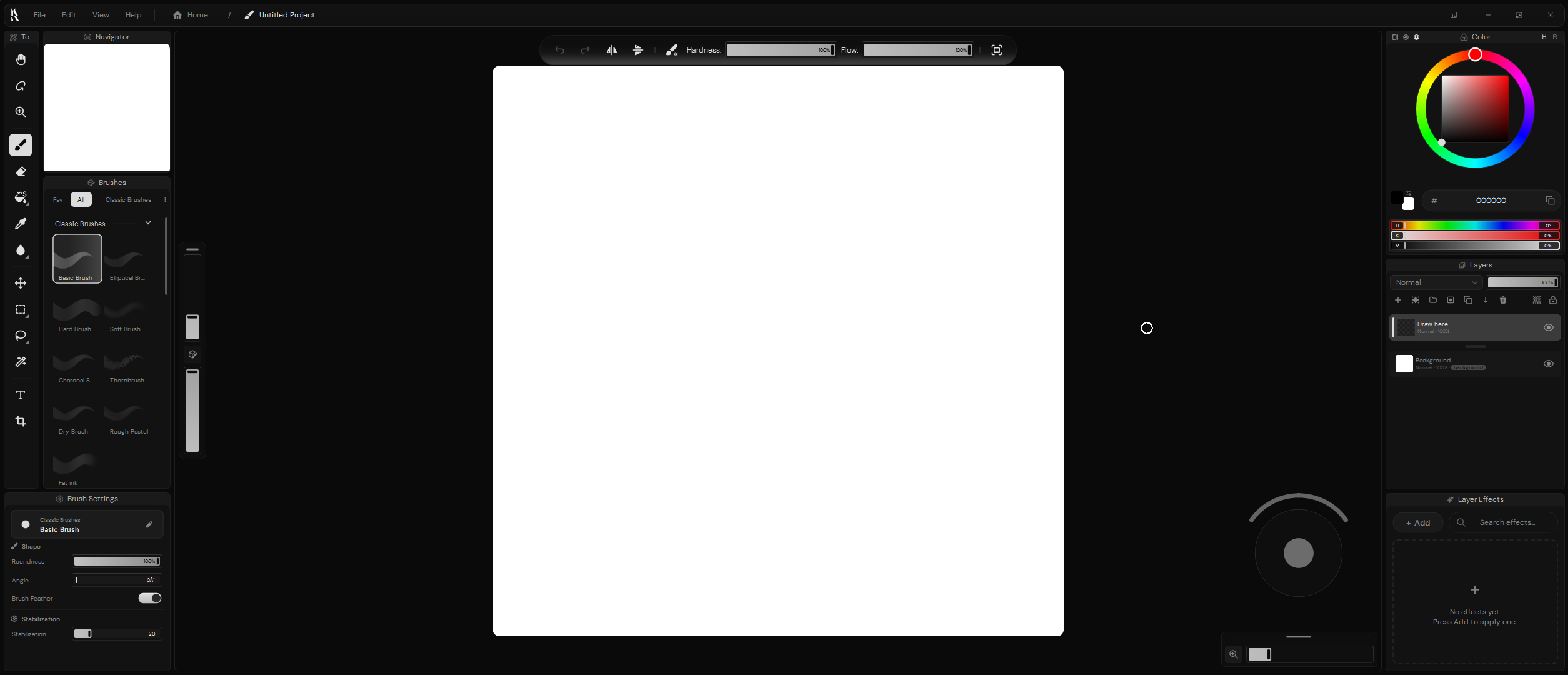
Once a project opens, Ruwa swaps the Home screen for the editor: canvas in the middle, tools and brush controls on the left, color and layers and effects on the right.
This page just tells you where things sit. Each panel, tool, and widget gets its own page elsewhere.
Canvas panel
The big area in the center is the Canvas panel — your canvas, the space around it, and the Canvas widgets floating over that space. This is where painting and navigation happen.
Canvas widgets stay near the artwork so you can reach common controls without opening a panel or digging through a menu.
Canvas widgets
Tool bar
Undo and Redo, horizontal and vertical mirroring, the key settings for whatever tool is active, and a button that copies the image to the clipboard.
Brush Control
Top slider is brush size, bottom slider is opacity. The button between them opens a compact Brushes and Brush Settings popup.
Joystick
Touch-friendly panning, rotating, and zooming. The horizontal control under it handles zoom.
That middle button on Brush Control earns its keep on smaller screens. Its popup covers brush selection and the settings you reach for most, which means the full Brushes and Brush Settings panels can stay closed.
Tools panel
The narrow strip on the far left is the Tools panel. It decides how you interact with the project. The active tool lights up, and its most important parameters appear in the dynamic middle of the Tool bar.
Drawing, navigation, selection, transformation, utility — they're all in there. Each one is documented separately, so don't feel obliged to decode every icon before you paint.
Default panels
Seven panels are docked when a project opens, including the Tools panel you just met:
| Panel | What it does |
|---|---|
| Tools | Picks how you interact with the project. |
| Navigator | Shows the whole artwork and where you're currently looking. |
| Brushes | Brush packs and brush presets. |
| Brush Settings | Quick access to the current brush's settings. |
| Color | Picks and adjusts the colors you paint with. |
| Layers | The layer stack, visibility, opacity, and blend mode. |
| Layer Effects | Adds, searches, and manages non-destructive layer effects. |
That's just the starting arrangement. Resize them, move them, dock them somewhere else, or close the ones you never touch — Ruwa remembers what you did.
One quirk worth knowing: the Tools panel has no Close Panel in its header context menu. Hide it from View → Panels instead.