
Navigate the canvas
Move around the canvas without changing the artwork.
Everything on this page moves your view, not your artwork. Pan, zoom, rotate, and mirror as much as you like — the layers, the pixels, and the exported image stay exactly where they were.
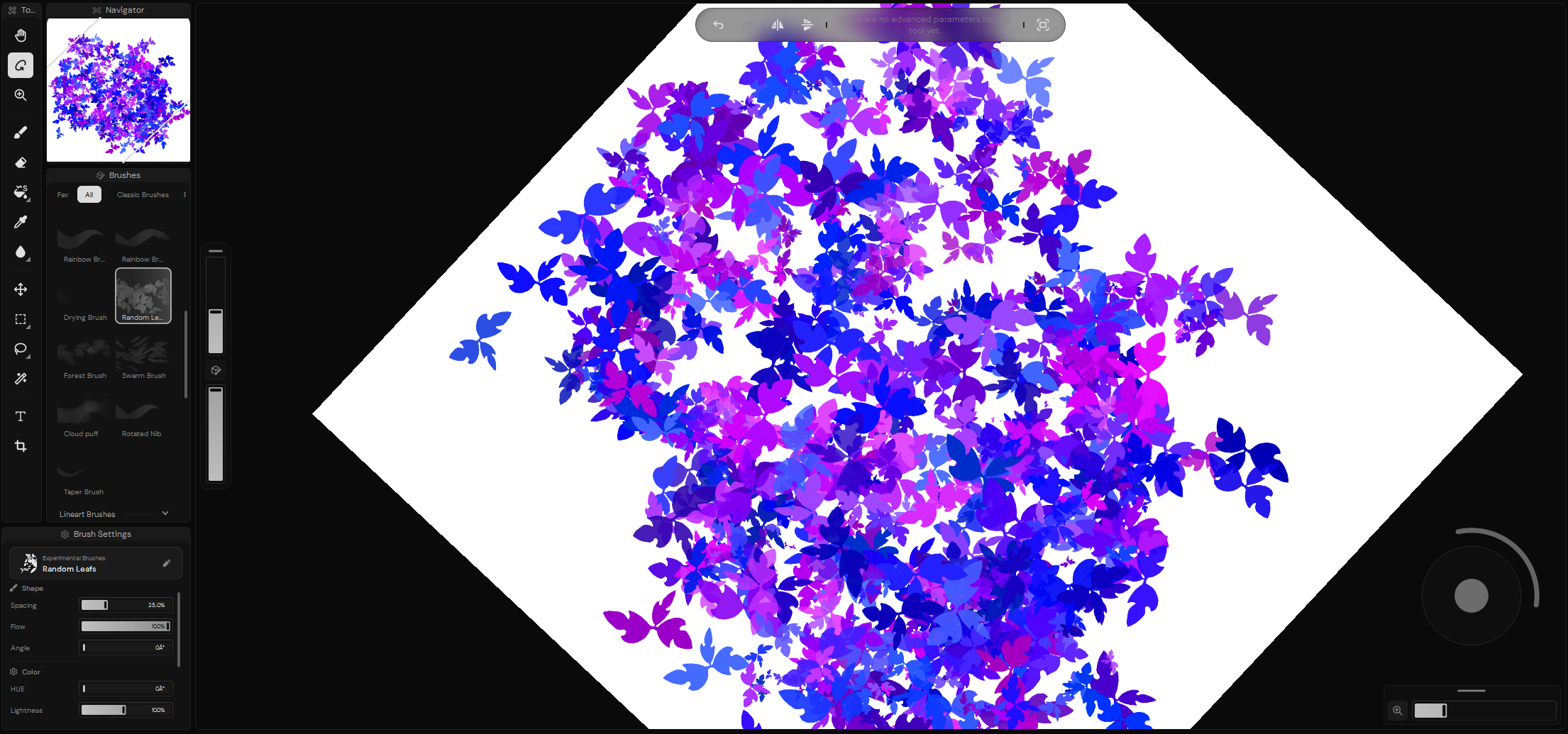
Pan the canvas
Panning moves the view across the project without moving its contents. You can pan in three ways:
- Drag with the middle mouse button while any tool is active.
- Hold
Spaceand drag with the left mouse button to use the Hand temporarily. - Press
Hto select the Hand tool, then drag with the left mouse button.
The temporary Hand is useful while painting because releasing Space returns
to the previously selected tool.
Hand and Move do different things
The Hand tool moves your view of the canvas. The Move tool changes the position of layer or selection content.
Zoom in and out
Scroll the mouse wheel, or use an equivalent scroll gesture, to zoom around the current pointer position. Keeping the pointer over the area you want to inspect makes it easier to move directly into fine details.
Press Z to select the Zoom tool. Start a drag over the point you want to
keep in place, then drag upward to zoom in or downward to zoom out. Double-click
with the Zoom tool to return to 100%.
You can also use Ctrl + + and Ctrl + - to change the zoom in steps.
These commands zoom around the center of the view. Ruwa briefly displays the
current zoom percentage whenever the zoom changes.
Rotate the view
Press R to select Rotate View, then drag with the left mouse button around
the center of the Canvas panel. The project turns with the drag while its image
data remains unchanged.
Hold Shift + Space to use Rotate View temporarily. Releasing the keys
returns to the previous tool. Double-click with Rotate View to return the view
to 0°.
Turn the canvas when the stroke you want is easier at a different angle. Long curves and hatching get a lot friendlier this way.
Fit and reset the view
These three are separate actions, and it's worth knowing which one does what:
Ctrl + 1 snaps the zoom back to 100%. The canvas stays where it is on
screen, and any rotation you set survives.
Ctrl + 0 fits the current canvas area into the available space and centers
it. Rotation survives this one too.
Double-clicking with Rotate View is the only one that touches rotation: back to 0°, zoom left alone.
Zoom In, Zoom Out, and Fit to Window are in the View menu as well.
Mirror the canvas view
The Tool bar provides horizontal and vertical mirror controls. Horizontal mirroring flips the view from left to right, while vertical mirroring flips it from top to bottom. Select an active mirror control again to return that axis to its normal orientation.
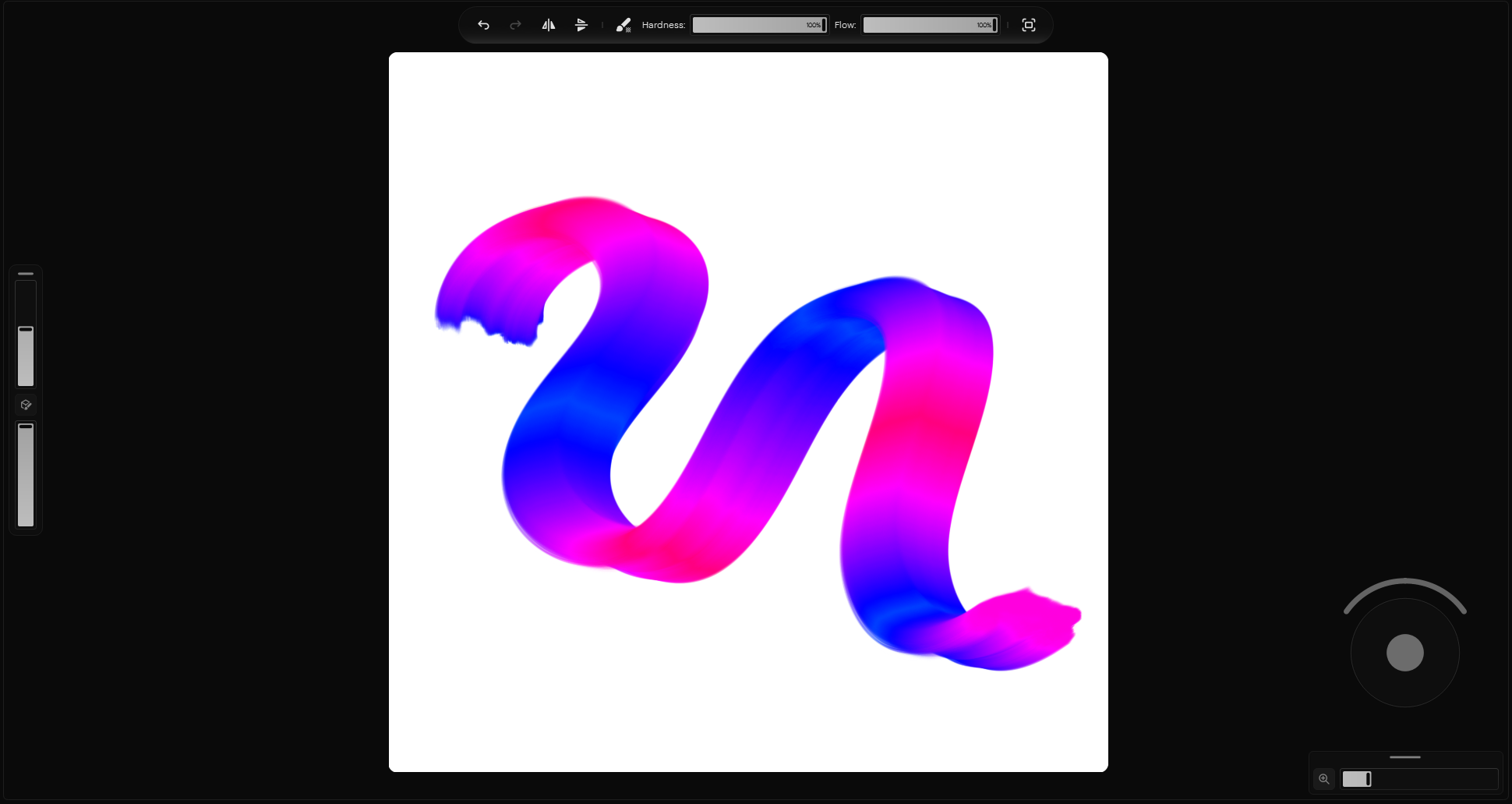
Normal view
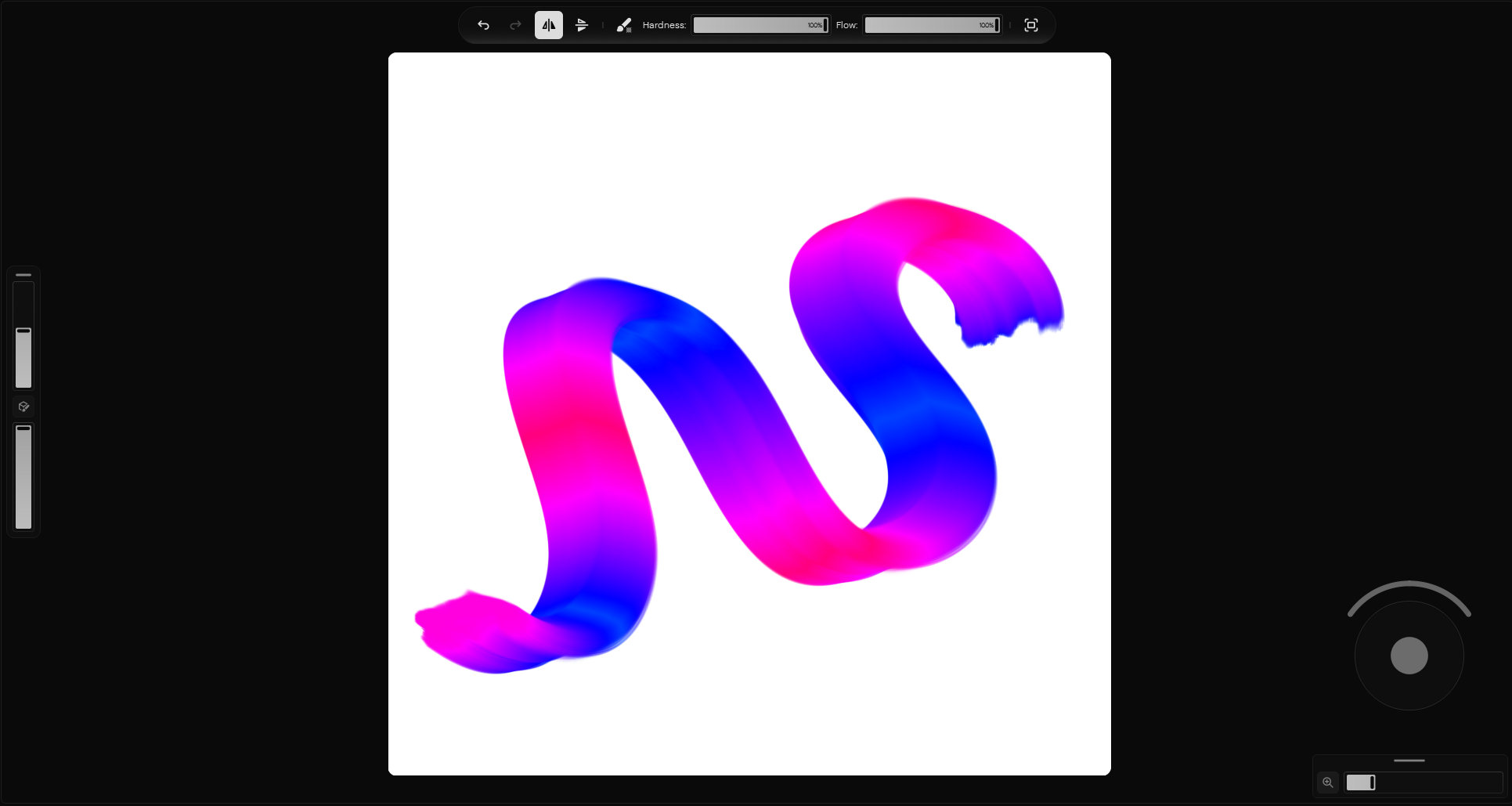
Horizontally mirrored view
Flipping the view is the oldest trick for catching a composition that's drifted off balance. Stare at something long enough and your eye stops seeing it; mirroring hands it back to you as if it were someone else's drawing.
Default navigation controls
| Action | Default control |
|---|---|
| Pan temporarily | Hold Space and drag |
| Pan while any tool is active | Middle-button drag |
| Select Hand | H |
| Zoom at the pointer | Mouse wheel or scroll gesture |
| Select Zoom | Z |
| Zoom in or out | Ctrl + + or Ctrl + - |
| Return to 100% | Ctrl + 1 |
| Fit to the workspace | Ctrl + 0 |
| Select Rotate View | R |
| Rotate temporarily | Hold Shift + Space and drag |
| Reset rotation | Double-click with Rotate View |
These are the defaults. Remap the command shortcuts in Keyboard Shortcuts
settings if they clash with your habits; the temporary Space behavior lives
with the Canvas controls.